




How to Download, Install and Activate Visual Studio 2022
Introduction:
Visual Studio 2022 allows you to code in different programming languages and different platforms.
-
Requirements
- Visual Studio 2022 download file
- Operating system: Windows 10, Windows 8.1, Windows 11, Windows Server 2016 , Windows Server 2019 and Windows Server 2022 .
-
Steps to follow
-
Download Visual Studio 2022
-
Once you receive your order details, click the download link to start downloading your Visual Studio 2022.
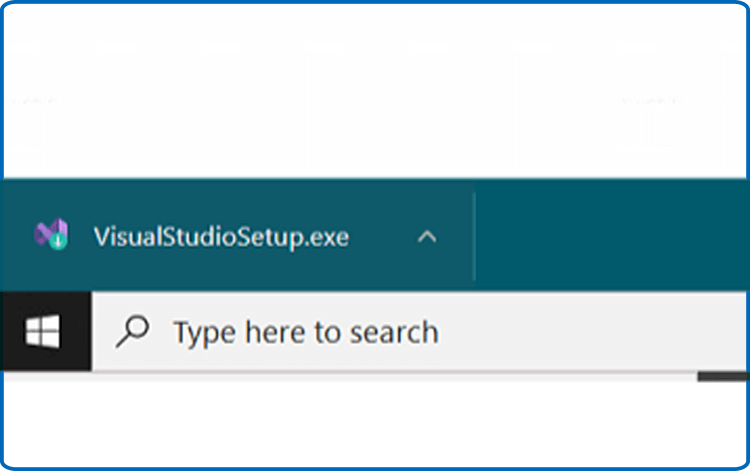
-
Double click the Visual Studio installer file to start
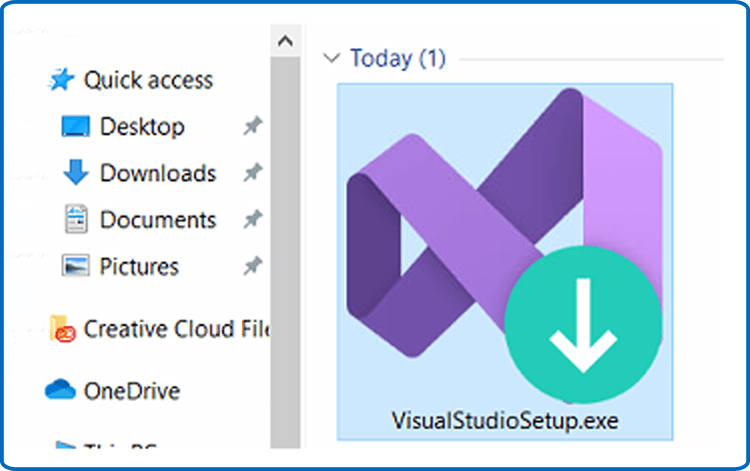
-
Click on Continue to start.
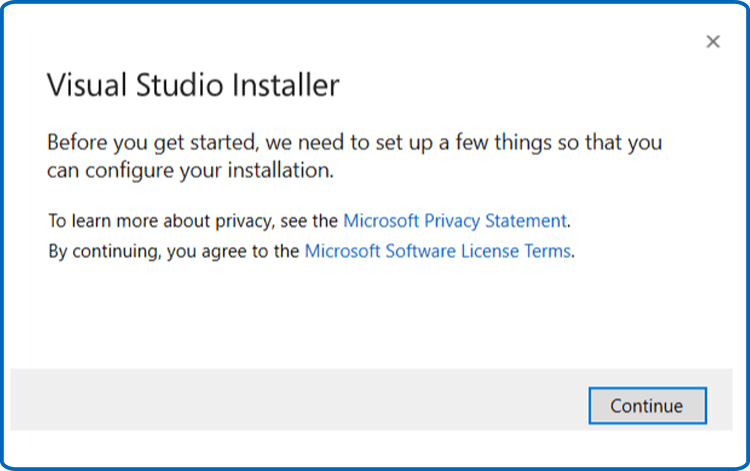
-
Let’s wait for the download of Visual Studio Installer
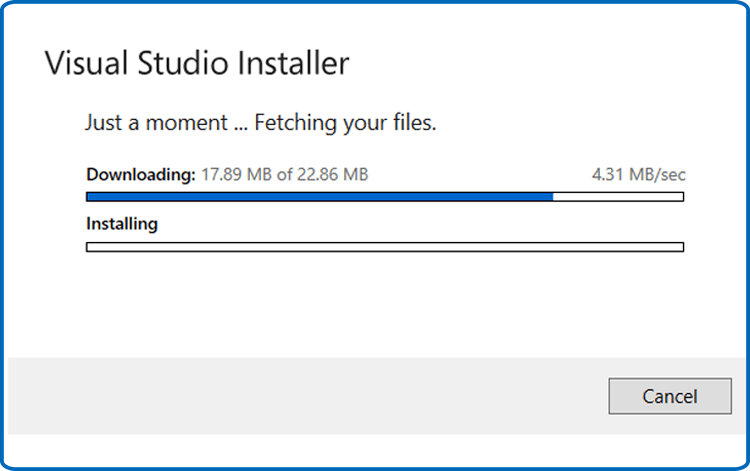
-
-
Install Visual Studio 2022
-
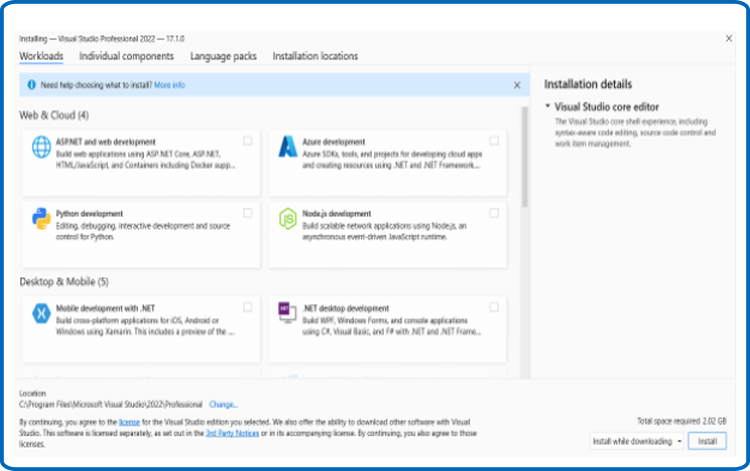
After installing the Visual Studio installer, you can use it to customize your installation by selecting the feature sets. Find the workload you want in the Visual Studio Installer.
-
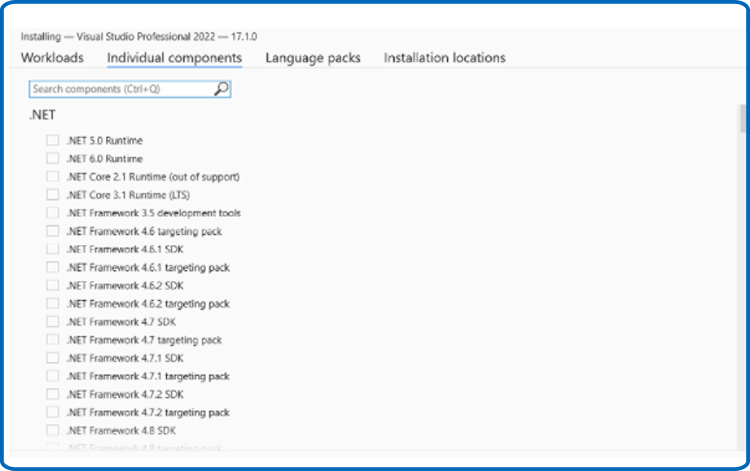
You can install or add individual components from the Individual components tab.
-
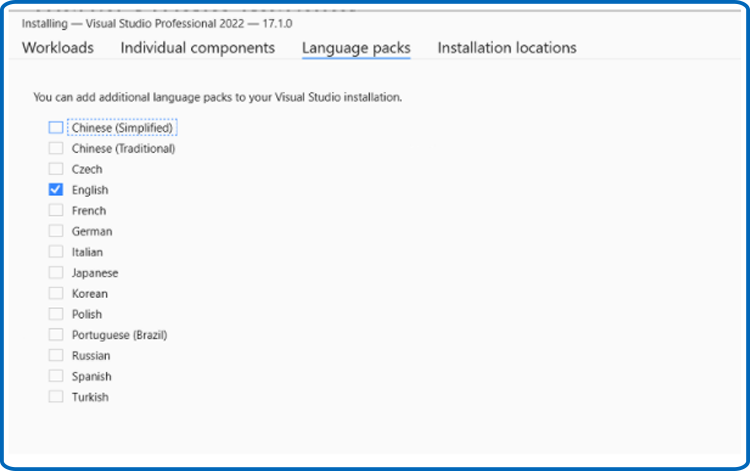
By default, the installer program will select the language of the operating system. However, you can change manually the language of your VS 2022
-
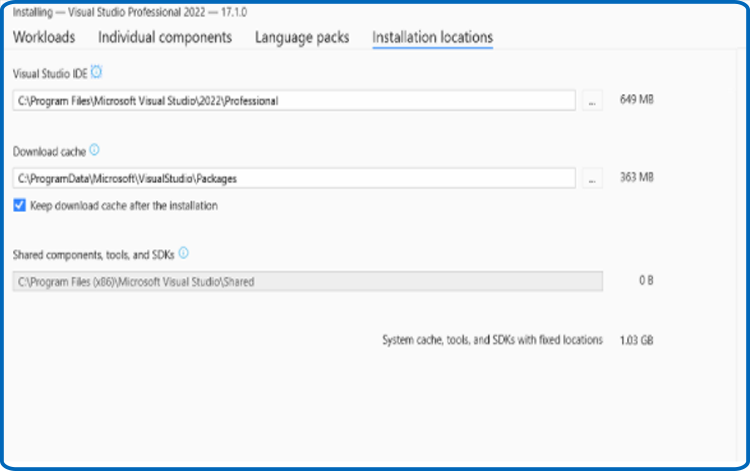
You can reduce the installation footprint of Visual Studio on your system drive.
-
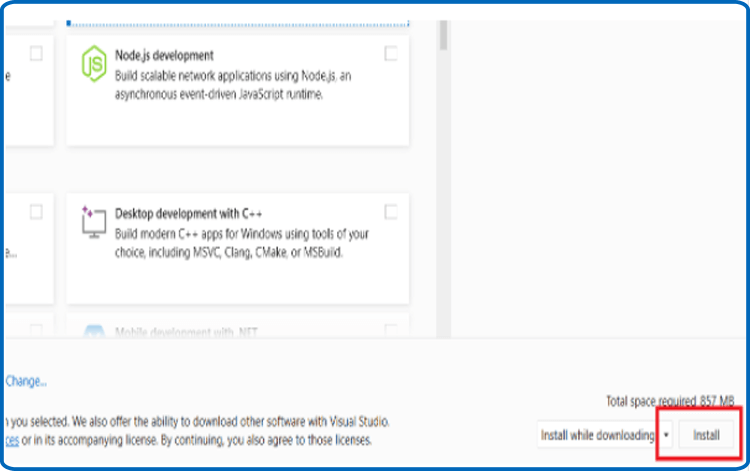
Click on Install to run the installation of Visual Studio 2022.
-
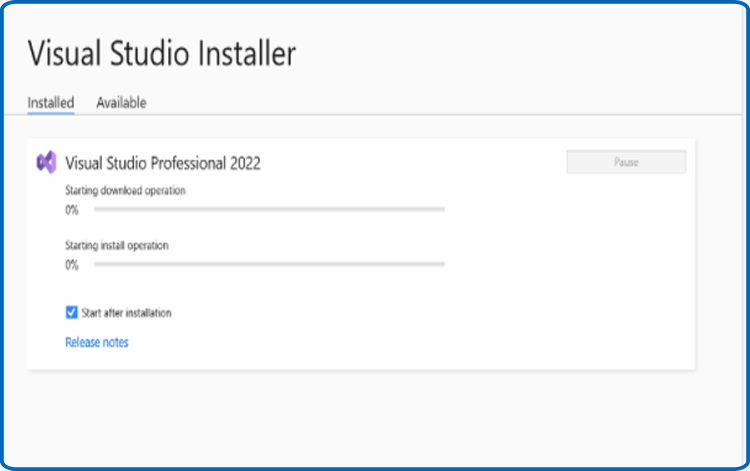
Let’s wait for the installation of Visual Studio 2022
-
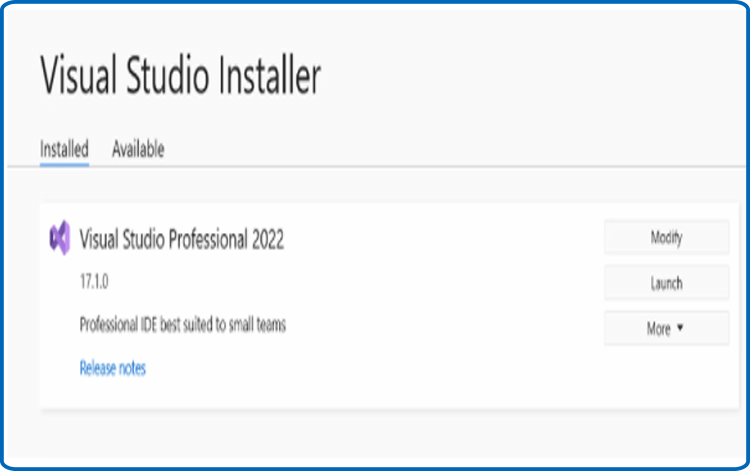
Visual Studio 2022 is installed. Click on Launch to run the application.
-
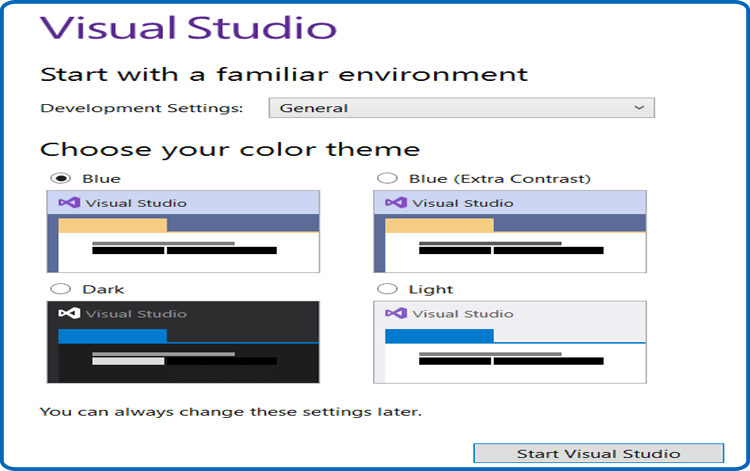
Choose the development settings, then click on Start Visual Studio
-
-
Activate Visual Studio 2022
-
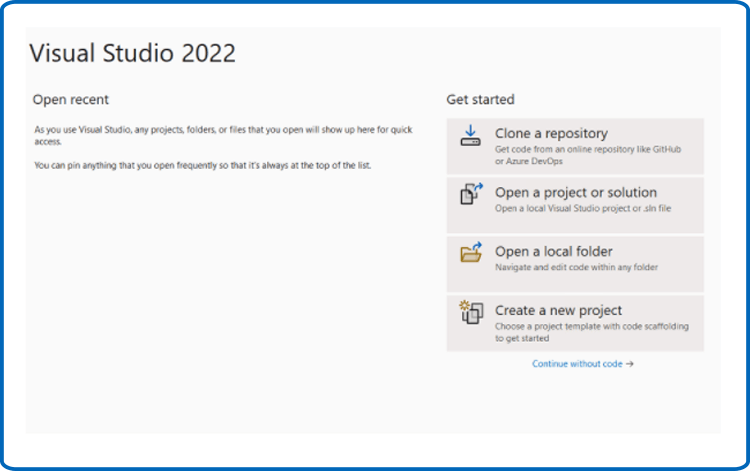
Once the application is launched, click on Continue without code
-
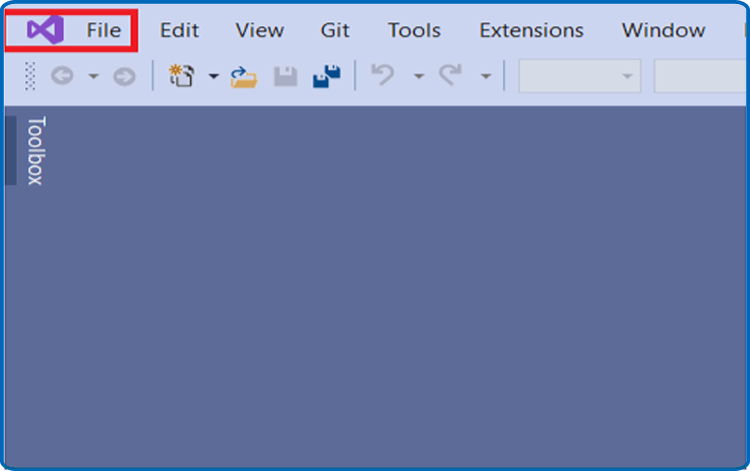
Click on File
-
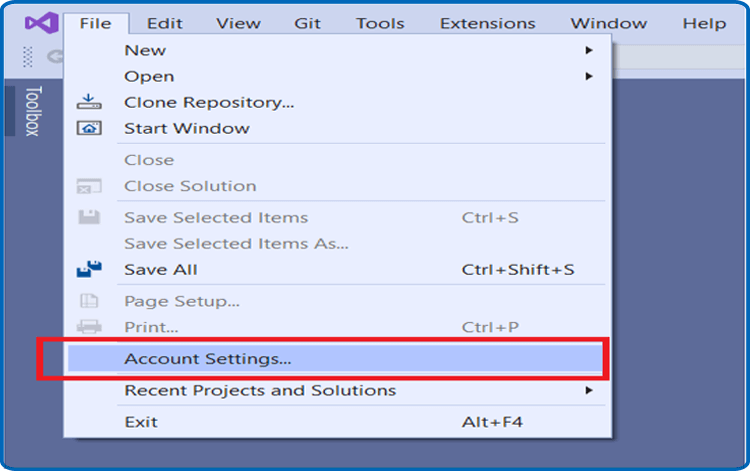
Click on Account Settings
-
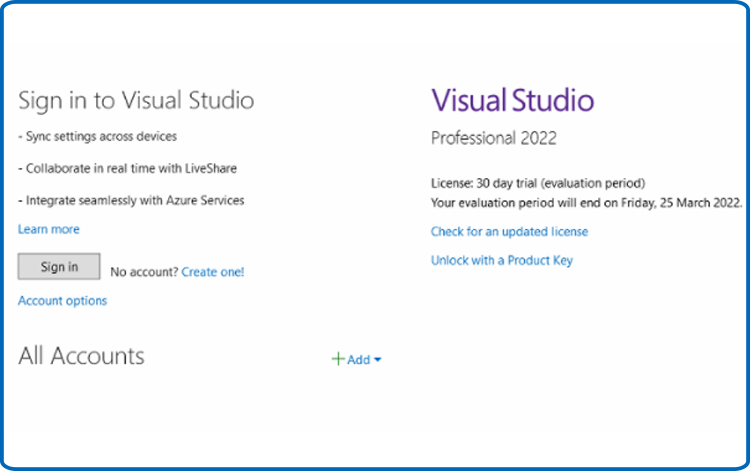
Click on Unblock with a product key.
-
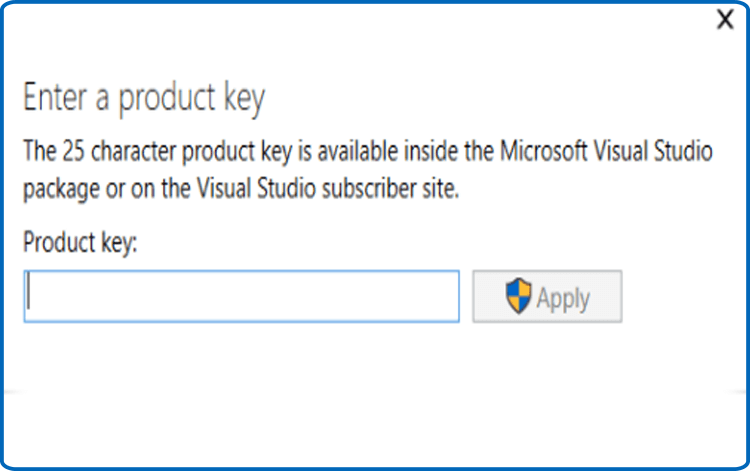
Enter the product key then click on Apply to activate your Visual Studio 2022.
-
-
Done! Your Visual Studio 2022 is now activated.

